

Splunk Integration with IBM App Connect
In this blog, we will learn how to integrate Splunk with IBM App Connect.
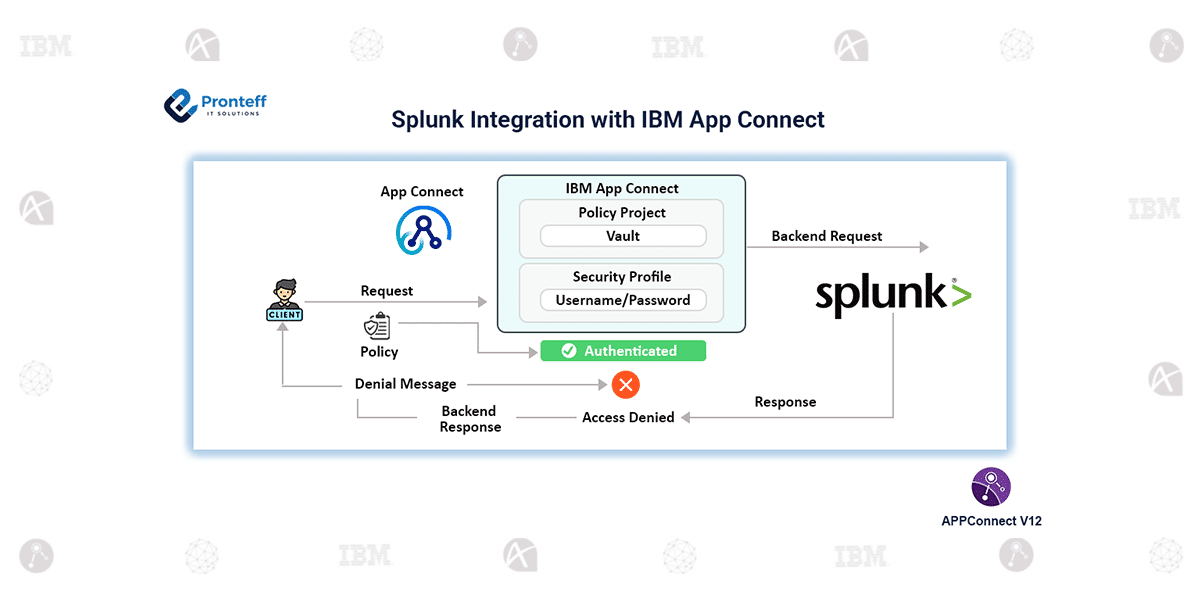
The Splunk Request node in IBM App Connect allows you to establish a connection to Splunk and enables you to send requests to perform a variety of operations on resources such as searching, monitoring, and analyzing machine-generated data in real time.
This node enables you to interact with and manage different objects within your account by programmatically issuing requests for searching, monitoring, and analyzing data related to these resources.
Configuration
- Create a message flow that includes a Splunk Request node.
- Set up a new policy with the Vault key and work directory.
- Create an integration server with the same Vault key and work directory.
- Obtain the necessary credentials (username and password) from your Splunk account.
- The username and password are securely stored in the vault to ensure security.
- Use the obtained credentials to integrate Splunk with App Connect.
- Retrieve the data in App Connect by sending the ID.

Once the integration is established, you can perform various operations using the Request node, like Retrieve all applications, Retrieve HEC token, Retrieve HEC token by ID, Send HEC data input, and Create search job and retrieve searches by ID, and also for retrieving all users.
It’s important to note that the operations performed by the Request node are synchronous and non-transactional. This means that even if a message flow fails and rolls back after the node, the operation on the Splunk request node will still be completed.
For security reasons, sensitive credentials such as the username and password are not hardcoded in the message flow. Instead, they are securely stored in a vault and retrieved at runtime during execution. This approach helps protect confidential information, supports centralized credential management, and ensures compliance with security best practices while interacting with Splunk services.
Once we have configured our integration flow, test it thoroughly to ensure that it functions as expected. We can use sample data or real data from our Splunk account for testing. Once a connection is established, deploy the integration to make it active and ready for ongoing use.